At TaskBrowse, we always prioritize our customers’ feedback—continuously integrating their needs and suggestions into the development of our project management platform. Read on to discover what’s new in this update, and feel free to share your valuable feedback with us.
1. Improved Task Dependency Management
In the new version, the features related to creating and managing task dependencies have been enhanced. Previously, dependencies could only be configured through the Gantt Chart using drag-and-drop actions or by right-clicking on a task. Now, a new and more convenient method has been introduced.
When editing a task, navigate to the Dependencies tab to easily manage its prerequisites. Simply click “+ Add predecessor” and select the desired task to define it as a prerequisite. You can also edit or remove existing task relationships directly from this section.
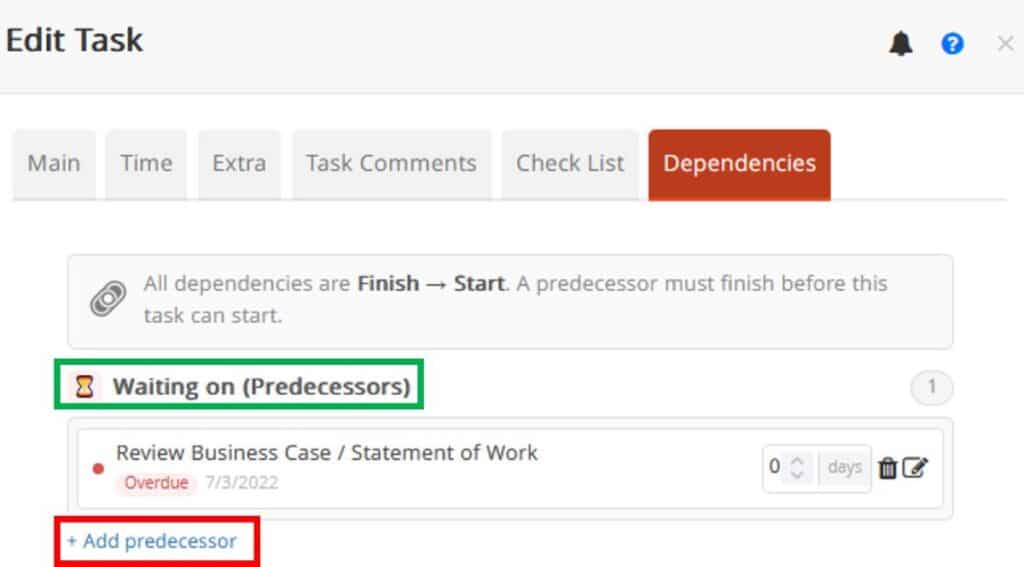
In the Status Display Area (the green section shown in the image above), you can view the number of incomplete dependencies for each task.
Additionally, a new Dependencies tab has been added to the Task Details panel, which can be accessed by clicking the (i) icon throughout the system. In this section:
- A list of the task’s direct dependencies is displayed.
- If any of these tasks have their own dependencies, you can explore the dependency hierarchy through a drill-down view.
- The number of problematic dependencies (such as overdue tasks and similar issues) is also displayed in this section.
2. Enhanced Reminder Capabilities in TaskBrowse
In this update, task reminder features have been expanded to make time management and task follow-up more efficient and accurate.
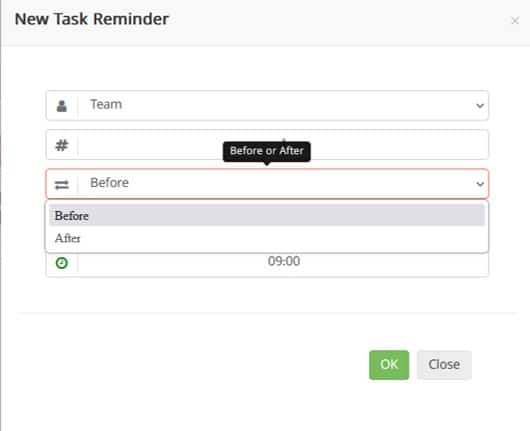
A new option has been added to the Notification of task changes section (accessible through the bell icon in both the task edit form and task details view). Under the Task Reminders tab, you can now specify how many days before or after a task’s start date or due date a reminder should be sent, as well as the exact time for delivery.
Reminders can be delivered through:
- In-app notifications
You can choose whether the reminder should be sent only to yourself or to the entire task team.
Reminder Configuration Permissions
- Users without special permissions can create reminders only for themselves.
- Users with permission to edit a task can create reminders for the entire team.
- If a new user is added to the task team after a reminder has been configured, that user will also receive the reminder.
- Past reminders remain visible for up to 3 days after their scheduled time.
3. Improved Task Scheduling Model
This update introduces a more flexible approach to defining a task’s start date, due date, and duration.
You can now choose which of these values should be calculated automatically by the system. To do this, simply activate the calculator icon next to the field you want the system to calculate, then enter the other two values. TaskBrowse will automatically determine the third value for you.
This enhancement makes task planning easier and allows project managers to define schedules using the information they already have, while letting the system handle the remaining calculation automatically.
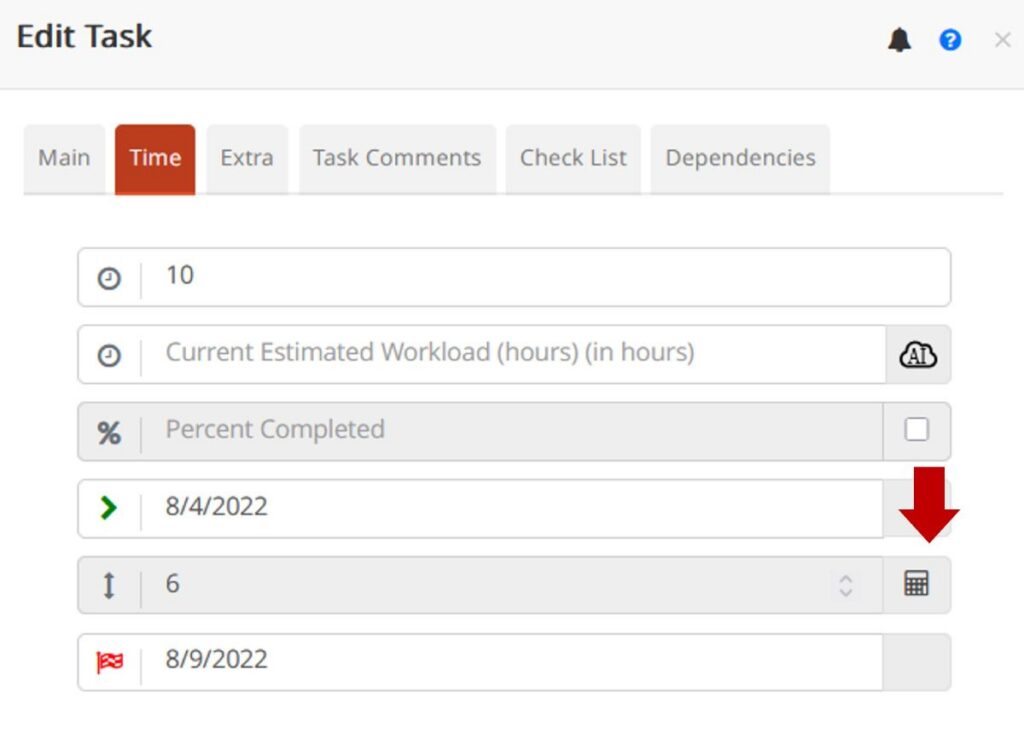
In these calculations, non-working days and holidays are excluded. To define and manage holidays, navigate to Management → Period Management.
How These Settings Are Saved
- If you use this feature while creating a new task, the selected calculation model will be saved as your default preference for future tasks.
- If you change and save this setting while editing an existing task, the selected calculation model will be applied only to that specific task.
4. Optimized System Settings
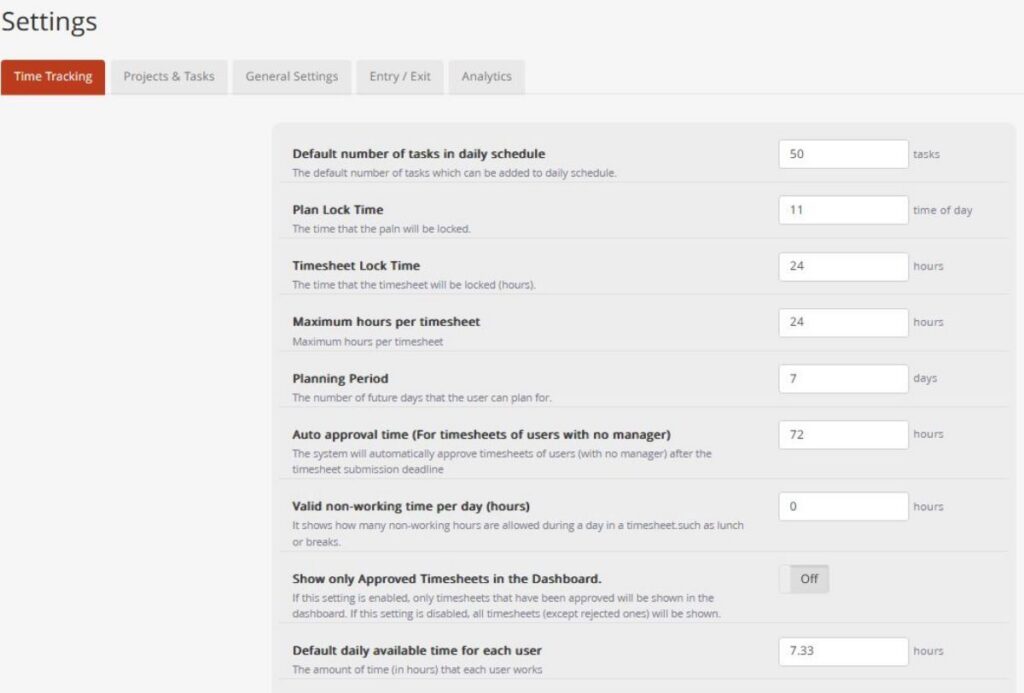
In this release, the System Settings section has been redesigned and reorganized to provide easier access to configuration options and a clearer management experience for system administrators.
In the new structure, related settings are grouped into dedicated tabs:
- Time Tracking
- Projects and Tasks
- General Settings
- Entry / Exit
- Analytics
This new categorization helps administrators locate relevant settings more quickly and manage the software configuration more efficiently.
5. Emoji Support Added to TaskBrowse Chat
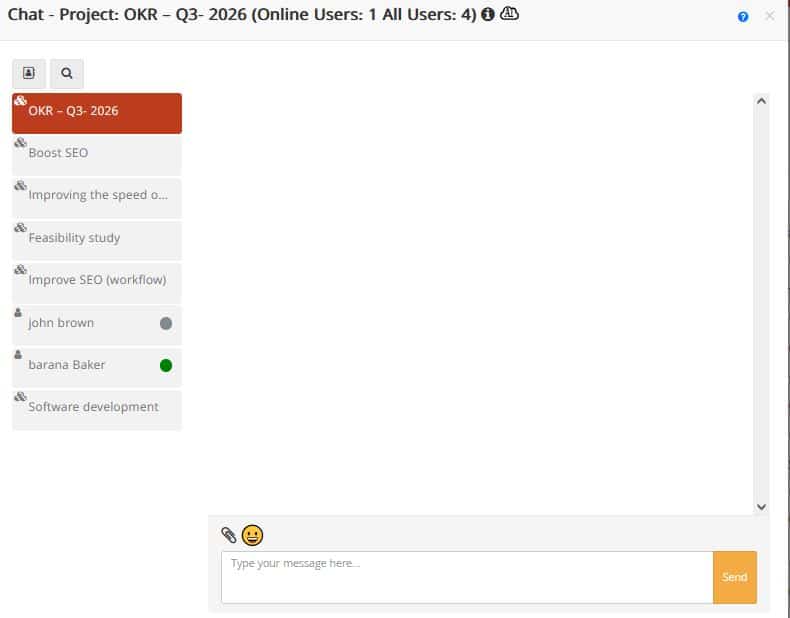
Emoji support is now available in the TaskBrowse web chat.