September 2026 Update
Raila Gets Sharper. Finding Things Gets Faster.
This release moves Raila from answering questions to actually reading your projects — spotting risk, surfacing what needs attention, and searching meetings for you. Alongside it: a new Navigation Rail, Global Search, and pinning, so the system adapts to how you work instead of the other way around.
Try TaskBrowse for free →What’s new at a glance
Raila (AI)
- Predicts future project risks, not just current ones
- Builds a prioritized “needs your attention” summary
- Searches and reviews meetings and decisions
- Generates charts directly in chat
- Deeper project and task health analysis
Navigation & workspace
- New Navigation Rail (Classic Menu still default)
- Global Search across the whole system (Ctrl + K)
- Pin sections, projects, and tasks for one-click access
- Preferences split out from user information
Raila Moves From Answering Questions to Reading the Project
Most of what changed in this release is under the surface: Raila now looks at what’s actually happening in a project — task status, delays, dependencies, workload — and turns that into something a manager can act on, instead of something they have to go dig for.
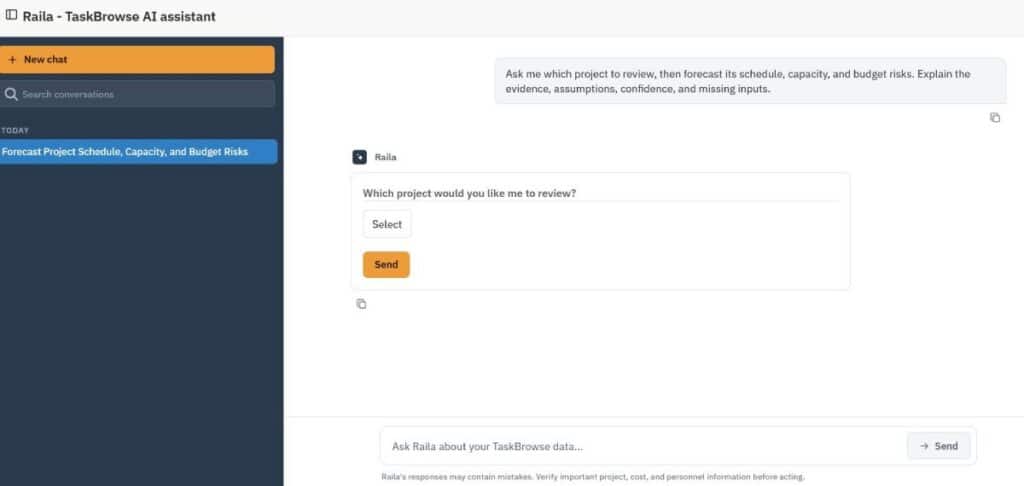
Predicting risks before they become problems
Raila can now analyze current project data to flag risks that are likely to surface later in the project — not just report what’s already gone wrong. It reviews task status, delays, dependencies, and workload to catch warning signs early enough to still do something about them.
One prioritized list of what actually needs you
Instead of a wall of information, Raila now builds a single, prioritized summary of what needs your attention — overdue tasks, blocked work, upcoming milestones, missing timesheets, team members over capacity, and notifications worth reading. One list, ranked by what matters, instead of eight screens to check separately.
Search meetings and decisions, not just tasks
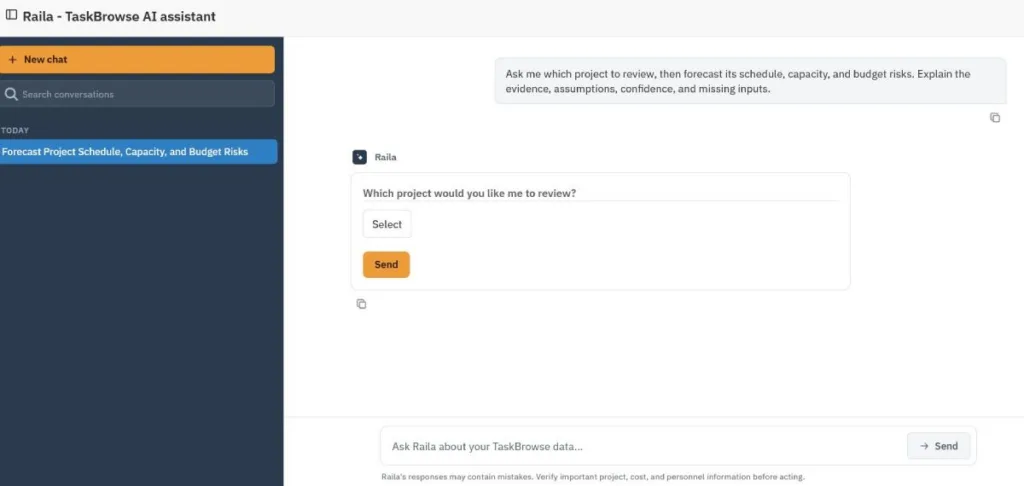
Raila can now search and analyze meetings and the decisions that came out of them. Ask it a question, and it pulls the answer from across your meeting history — no scrolling through old notes to find what was actually agreed.
Charts, generated where you’re already talking
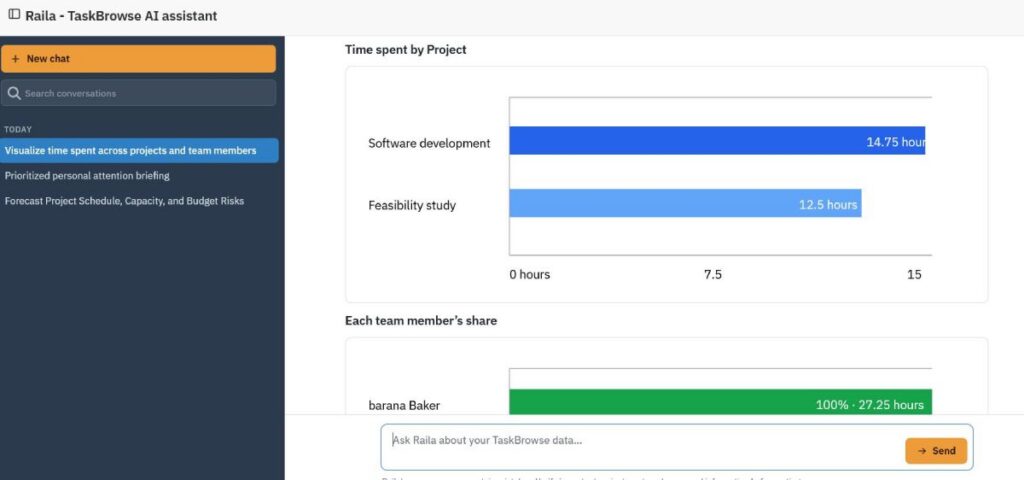
When a number is easier to read as a trend than as a sentence, Raila now draws it — right inside the chat, alongside its answer. No separate report to build for a quick comparison.
A clearer read on project and task health
Project health analysis now goes deeper, with a matching view for individual tasks. The result: a faster read on what’s on track, what needs attention, and where the early signs of delay or overload are showing up.
A New Navigation Rail: Less Searching, Faster Access
The second half of this release is about getting to what you need with fewer clicks. It’s not a re-skin — the structure itself changed.
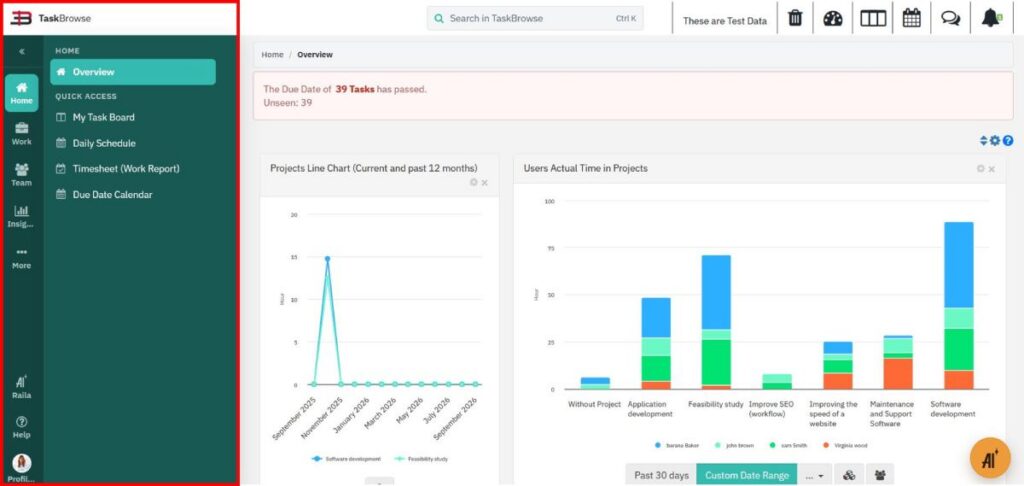
What the Navigation Rail is
The Navigation Rail places TaskBrowse’s main sections — Home, Work, Team, Insights, More, Raila, Help, and Profile & Settings — in a vertical bar, so moving between areas takes one click instead of a menu hunt. Permissions and license restrictions still apply exactly as before; people only see what they’re authorized to see.
Existing users keep their menu — by default
Nothing changes for current users unless they choose it. The Classic Menu stays the default. Switch anytime from Profile and User Settings → Preferences.
What’s inside the new menu
Pin what you use every day
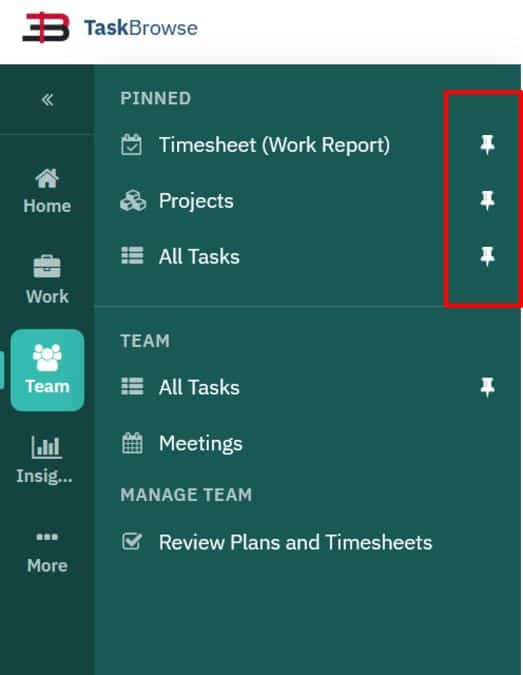
Pin the sections you rely on most — Check-in/Check-out, Reports, Projects, Tasks, and more. Pins are saved server-side per user, so they survive a refresh, a sign-out, or a new device. And if a permission or license changes later, a pinned item respects that automatically — it simply won’t appear if access is gone.
Global Search: one search bar, the whole system
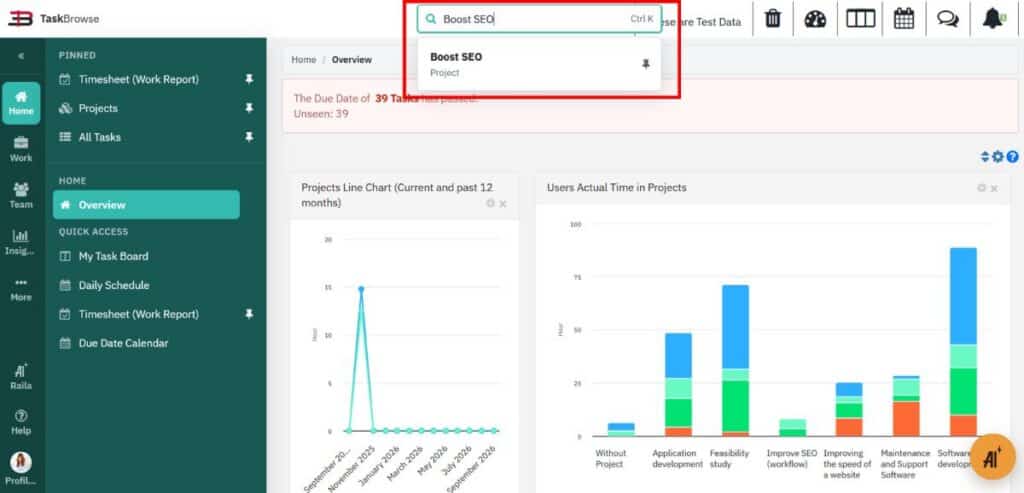
Global Search, now in the header, covers Projects, Tasks, Customers, Contracts, Users, Meetings, Reports, and menu items — from one place, instead of searching each section on its own. Results are actionable: pick a project and you’re on its page, pick a task and its details open, pick a user and you land on their filtered record. Trigger it anytime with Ctrl + K.
Pin straight from search results
Found the exact project or task you needed? Pin it right there in the results — no extra trip through the menu. Each result shows its pin status at a glance: green means pinned, gray means it isn’t. One click changes it. It means your personal workspace isn’t limited to whole sections like “Projects” — it can hold the three specific projects and five specific tasks you actually touch every day.
Preferences, separated from your profile
Settings that shape how you work in TaskBrowse now live in their own Preferences section, apart from your personal user information: language, date format, first day of the week, theme, Classic Menu vs. Navigation Rail, and whether the floating Raila icon is visible. Easier to find, because it’s no longer mixed in with your account details.